Cursor Launches Native iOS App for AI-Assisted Coding
Discover how the new Cursor for iOS app allows developers to launch, manage, and remotely control AI coding agents directly from an iPhone or iPad.
Author
Shalimar Mehra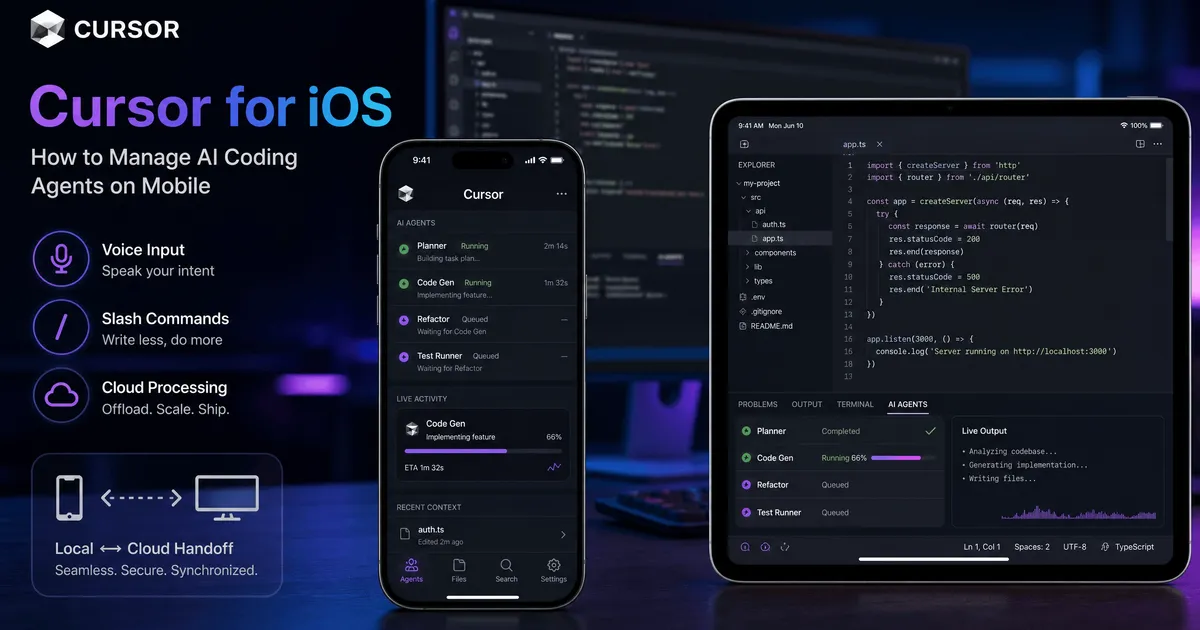
Cursor for iOS: How to Manage AI Coding Agents on Mobile
Introduction - The landscape of software development is undergoing a massive shift as artificial intelligence tools move from simple code autocomplete functions to autonomous, high-level coding agents. Aligning with this trend, Cursor has released a native iOS application in public beta, effectively untethering developers from their traditional desktop and multi-monitor setups. Available for both the iPhone and iPad, the new Cursor mobile app allows software engineers to launch, supervise, and review AI-driven coding tasks from anywhere.
Quick Answer / Summary - Cursor for iOS is a mobile application that connects to Cursor's agent-based coding ecosystem. It empowers developers to start new coding agents in the cloud or control existing local agents remotely via their mobile devices. Users can dictate ideas using voice input, utilize slash commands to provide guidance, review generated code and artifacts, and merge pull requests (PRs) on the go.
Why It Matters - Historically, developers have been anchored to their desks, keeping laptops active to oversee complex code generation. As AI coding systems advance, the developer's role is transitioning from typing code line-by-line to acting as a supervisor who frames tasks, refines prompts, and reviews output.
Cursor's mobile expansion acknowledges this shift, placing prompting and reviewing capabilities into a form factor that developers always carry. This transition is supported by industry leaders; for example, Boris Cherny, head of Claude Code at Anthropic, recently noted that most of his coding is now done on his phone. Furthermore, the launch of this app highlights the company's rapid momentum, following the recent $60 billion acquisition of Cursor's parent company, Anysphere, by SpaceX.
Core Features of Cursor Mobile
Voice Input and Slash Commands - Initiating a project on the mobile app mirrors the desktop experience. Developers can select a repository, choose a frontier AI model, and deploy an agent immediately. Because typing extensive code on a mobile keyboard is inefficient, Cursor integrates voice input so users can speak their ideas out loud, alongside standard slash commands for quick directional guidance.
Remote Control vs. Cloud Agents
Cursor for iOS operates agents in two primary environments:
Feature | Local Agents | Cloud Agents |
|---|---|---|
Operation Location | The developer's physical computer. | Isolated virtual machines in the cloud. |
Requirements | Host machine must remain awake and reachable. | No local machine required. |
Best For | Continuing active desktop sessions, testing local changes. | Long-running asynchronous tasks, building demos, generating logs. |
Capabilities | Managed via the "Remote Control" feature. | Equipped with full development environments; iterate without intervention. |
Handoff Between Environments
The Cursor ecosystem allows for fluid transitions between local and cloud workspaces. Developers can draft a local plan on their desktop and send it to a cloud agent for heavy processing. Conversely, active cloud sessions can be pushed back to a local machine so the developer can manually test the changes before merging the pull request.
Monitoring Progress and Reviewing Code
Because developers serve as supervisors, the app focuses heavily on visibility.
Live Activities & Push Notifications: Users do not need to keep the app open. Cursor utilizes Apple’s iOS Live Activities to display real-time updates on the lock screen. Push notifications alert the user when an agent needs human input, encounters a blocker, or finishes a pull request.
Artifact Review: Cloud agents do not just write raw code; they produce verifiable artifacts like logs, screenshots, and functioning demos. Developers can review these diffs, append follow-up instructions, or merge the PR directly within the app.
Step-by-Step Guide: Launching a Local Agent from Mobile
If you want to control a coding agent running on your local machine using your iPhone, follow these steps:
Prepare your desktop: Ensure your computer is turned on and enable the setting that prevents the machine from going to sleep while you are away.
Open the App: Launch the Cursor for iOS app on your mobile device.
Select a Repository: Choose the specific codebase you want to work on.
Choose a Model: Select your preferred frontier AI model.
Prompt the Agent: Use voice dictation or slash commands to give the agent its initial instructions.
Activate Remote Control: Use the Remote Control feature to continue directing the local agent from your phone.
Best Practices
Use Visual Context for UI Changes: If you spot user feedback on platforms like X, take a screenshot, annotate the image, and send it directly to the AI agent. Cursor notes this is the fastest way to initiate design or UI updates.
Leverage Cloud Agents for Long Tasks: Send complex, long-running tasks to cloud agents, as they operate asynchronously in isolated virtual machines and can iterate toward merge-ready code without your intervention.
Test Locally Before Merging: While you can merge PRs on the go, it is highly recommended to move cloud sessions back to your local computer to thoroughly test changes before finalizing a merge.
Common Mistakes
Letting the Host Machine Sleep: When relying on the Remote Control feature for local agents, failing to enable the "keep awake" setting on your desktop will cause the machine to become unreachable, breaking the connection to the mobile app. (Note: The provided source materials do not detail other specific user mistakes at this stage of the beta).
Practical Examples of Mobile Workflows
Early testers and the Cursor team are utilizing the mobile application for several practical scenarios:
On-Call Incident Management: If a developer is paged during lunch, they can launch an agent to investigate the issue and draft a fix. A pull request can be ready by the time they return to their desk.
Rapid Customer Bug Resolution: When a time-sensitive bug is reported, developers can use their phone to immediately prompt an agent to reproduce the bug and inspect the relevant codebase.
Expert Tips
Apple is reportedly building similar agentic coding tools natively into Xcode 27. Getting comfortable with mobile AI management via Cursor now will prepare developers for the broader industry shift toward mobile code oversight.
Take advantage of promotional pricing: Cursor is currently offering a 75 percent discount on Composer 2.5 mobile runs through July 5, 2026.
Frequently Asked Questions
Is Cursor for iOS available on iPad? Yes, the native application is available in public beta for both the iPhone and the iPad.
Is the Cursor mobile app free? Currently, the Cursor for iOS public beta is available to users who are on paid plans.
Can I run tasks that do not require a codebase? Not yet, but the feature is coming. Cursor is actively working on adding "repo-less chats" to easily kick off standalone tasks. Teams already use Cursor with MCPs (Model Context Protocols) to summarize Slack channels and query Datadog logs.
Key Takeaways
Cursor for iOS allows developers to launch and control AI coding agents from iPhones and iPads.
Users can manage both local desktop agents (via Remote Control) and asynchronous cloud agents.
The app utilizes voice inputs, slash commands, and image uploads to make mobile prompting efficient.
Live Activities and push notifications allow developers to step away from the app while agents work in the background.
Get to Know about - What is Gemini Spark? Google’s 24/7 AI Agent Explained
Community Discussion
Loading comments...
Join the Conversation
Log in to post your thoughts, ask questions, and engage with authors and developers.
Log in to Comment