What is Gemini Spark? Google’s 24/7 AI Agent Explained
Discover how Google’s Gemini Spark acts as your 24/7 personal AI agent, automating complex workflows across Workspace and third-party apps even when you're offline.
Author
Shalimar Mehra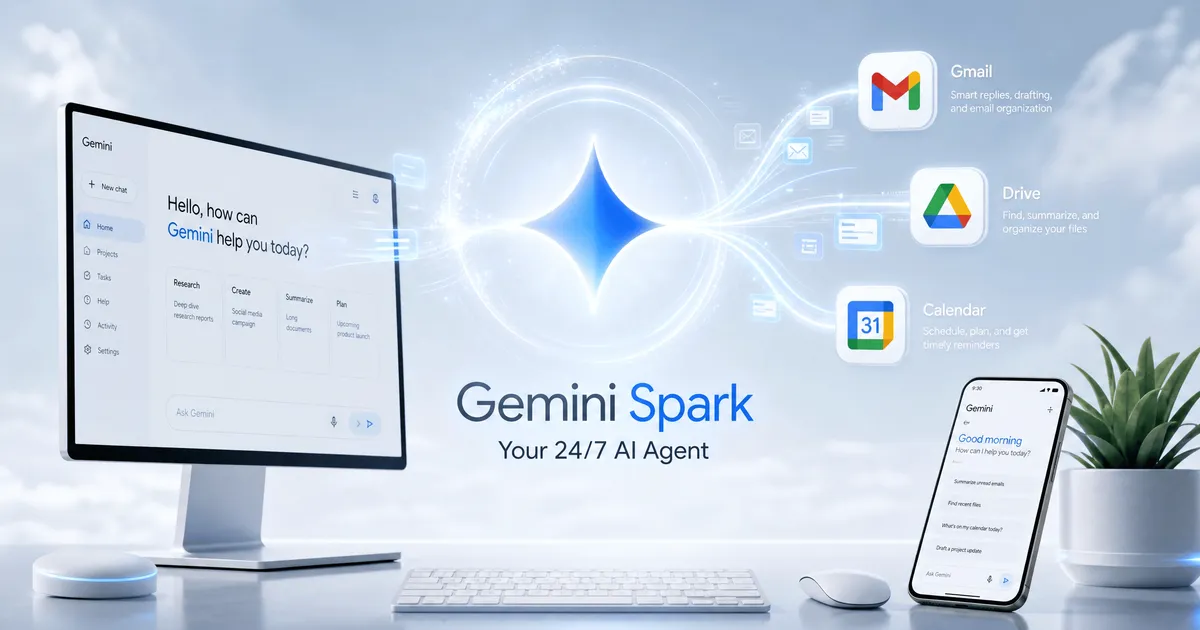
What is Gemini Spark? Google’s 24/7 AI Agent Explained
Introduction - The era of the standard AI chatbot is giving way to something far more powerful: the autonomous AI agent. Leading this shift is Gemini Spark, Google’s 24/7 personal AI agent. Unlike traditional chatbots that require constant prompting and only work while your browser is open, Gemini Spark operates persistently in the background on Google's cloud infrastructure.
Whether you need to clean up your inbox, sort downloaded files on your Mac, or compile a weekly financial report, Gemini Spark acts as a tireless digital assistant designed to execute multi-step workflows on your behalf. This guide covers everything you need to know about Google’s always-on agent, from core features to setup and best practices.
Quick Answer / Summary - Gemini Spark is a persistent, cloud-based AI agent powered by Google's Gemini 3.5 Flash model and Antigravity architecture. Available to Google AI Ultra subscribers, it connects directly with Google Workspace (Gmail, Calendar, Drive, Docs) and third-party apps to automate complex tasks, schedules, and skills. Spark works 24/7, even when your devices are turned off, handling everything from managing email subscriptions to researching and booking reservations.
Why It Matters - Gemini Spark represents a fundamental shift in how we interact with personal computing. Instead of a standard "assistant that answers questions," Spark is an "agent that completes tasks".
Because it runs on dedicated virtual machines via Google Cloud, it breaks free from device limitations. You can assign a complex task from your phone and let it execute the work remotely. This level of autonomous, cross-application integration—combined with its ability to intelligently track real-time events in sports, finance, and news without constant refreshing—makes it a game-changing tool for personal and professional productivity.
The Core Technology: Gemini 3.5 Flash and Antigravity
Under the hood, Gemini Spark runs on two core technologies: Gemini 3.5 Flash and Google Antigravity. Antigravity is an infrastructure harness capable of running multiple sub-agents in parallel to handle long-running, complex tasks. This allows Spark to chain multiple steps together, such as pulling meeting action items from Gmail, creating a project tracker in Sheets, drafting an outreach email, and setting a calendar reminder—all from one prompt.
The Three Pillars: Tasks, Schedules, and Skills
To use Gemini Spark effectively, you must understand its three building blocks:
Tasks (The "What"): A task is your high-level goal, such as "Plan my business trip to London" or "Find and track interior design internships". Spark can handle up to 15 tasks simultaneously.
Schedules (The "When"): You can automate tasks by setting time-based or conditional triggers. For example, you can schedule Spark to scan your inbox every Monday at 9:00 AM, summarize updates, and block out calendar time for deep work.
Skills (The "How"): Skills are reusable instructions. If you frequently write emails, you can ask Spark to analyze your last 50 emails to create a "ghostwriter" skill, ensuring it mimics your personal tone moving forward.
Ecosystem Integrations
Spark connects natively to Google Workspace, meaning it uses structured APIs rather than screen-reading to interact with Gmail, Calendar, Drive, Docs, Sheets, and Slides. It can rename files, RSVP to meetings, summarize emails, and build custom spreadsheets with formulas.
Beyond Google's ecosystem, Spark supports custom Model Context Protocol (MCP) connections. At launch, integrated third-party apps include Canva, Dropbox, Instacart, OpenTable, and Zillow Rentals. This allows you to design custom flyers, order groceries, or book a date night directly through your AI agent.
Gemini Spark on macOS
Google has expanded Gemini Spark to the macOS desktop app (available at gemini.google/mac). Spark can access files you grant it permission to use, allowing it to automate time-consuming desktop chores. For example, it can sort all the PDFs in your Downloads folder into specific project folders, or pull data from local invoices to generate a budget spreadsheet. Coming soon, users will be able to remotely assign tasks to their Mac from their smartphone.
Pricing and Availability
Currently, Gemini Spark is a US-only beta available to users 18 and older with a Google AI Ultra subscription.
Cost: $100 per month.
Inclusions: 5x higher usage limits than the Pro plan, 20TB of Google One cloud storage, YouTube Premium, and priority access to Antigravity.
Limitations: If you cancel or downgrade your AI Ultra subscription, your Spark skills and schedules will be paused, but any completed data or in-progress tasks will finish and be retained.
Step-by-Step Guide: How to Create a Task in Gemini Spark
Access Spark: On your computer, navigate to
gemini.google.comor open the Gemini app for Mac.Switch Modes: On the sidebar, click Switch to Spark (or Spark Tasks on Mac).
Define the Task: In the text box, describe what you want the agent to manage.
Add Parameters (Optional):
To specify a skill, type
/or@and select your saved skill.To add context, click Upload & tools to attach files from your hard drive or Google Drive.
Submit and Monitor: Click Submit. Check the "Progress" chip regularly, as Gemini may ask you to take over if it hits a security checkpoint.
Best Practices
Use the Work Panel: You can monitor Spark's progress, view planned steps, and check which files it has read or updated by opening the task thread's work panel.
Start Restrictive: Spark is powerful, meaning you should adopt a conservative whitelist approach. Only connect the specific Workspace apps or third-party services you actually need.
Manage Remote Data: Spark uses a remote browser and computer to execute code and navigate websites on your behalf. To protect your privacy, routinely go to Gemini Spark Settings and click Delete under "remote browser data" and "remote code execution".
Common Mistakes
Providing Sensitive Information Directly: Never enter your passwords, payment details, or highly sensitive data directly into the Spark text prompt. Instead, use the Take over task feature.
Ignoring Prompt Injection Risks: Agentic AI can fall victim to malicious instructions hidden in emails or documents (prompt injection). If Spark reads a compromised file, it could be tricked into exfiltrating data. Always supervise tasks involving unverified external files or incoming emails.
Scheduling High-Stakes Actions Blindly: If a schedule runs while you are offline, you cannot stop unintended actions. Avoid automating tasks that move money or send critical communications without requiring your final confirmation.
Practical Examples
The Group Trip Planner: Spark can turn a messy email chain into a master plan by logging flight receipts into Sheets, tracking RSVPs, and sending a consolidated itinerary email to your friends.
The Invoice Manager: Spark can parse your credit card statements, flag hidden subscription fees, surface misplaced receipts, and create monthly client invoices automatically.
Real-Time Sports/Finance Tracker: Instead of refreshing a browser, tell Spark to monitor your favorite soccer team and send a summary the moment the match ends, or generate a detailed report when a stock hits a specific price.
Expert Tips
Use the "Take Control" Mode: If Spark is trying to buy concert tickets or check out your Instacart cart, click the Remote computer icon, hover over Gemini’s browser, and click Take over task. You can type in your credit card, complete the purchase, and then click Go back to Gemini.
Explore Trending Skills: If you don't want to build workflows from scratch, navigate to the Skills tab in the Spark sidebar to find customizable, trending templates recommended by Google.
Frequently Asked Questions
Is Gemini Spark reading my emails 24/7? No. While it is an autonomous agent running in the background, it does not read your emails indiscriminately. It only accesses the data necessary to complete the specific tasks and schedules you assign to it.
Can Gemini Spark make purchases without my permission? Google designed Spark to ask for your review and confirmation before performing high-stakes actions, such as spending money, sending emails, or modifying data.
What happens if I turn off Gemini Spark? Turning off Spark deletes your remote browser and code execution data. Your schedules will not run, but your completed tasks, chat threads, and any files Gemini created will remain safely in your account. You can turn it back on at any time to resume paused schedules.
How does Spark compare to ChatGPT Agent or Claude Cowork? While ChatGPT and Claude offer robust agentic tools, they largely rely on local browser or desktop execution. Spark differentiates itself through its persistent cloud execution (it works while your device is off) and deep API-level integrations with Google Workspace.
Key Takeaways
Always-On: Gemini Spark runs 24/7 on Google Cloud, executing tasks even when your laptop and phone are powered down.
Highly Customizable: By combining Tasks (goals), Schedules (triggers), and Skills (reusable instructions), you can automate incredibly complex digital chores.
Privacy-Focused but Requires Supervision: While Google requires confirmation for high-stakes actions, users must actively supervise tasks involving sensitive data or unverified external files to prevent prompt injection.
Premium Pricing: Access currently requires a $100/month Google AI Ultra subscription, targeting heavy users entrenched in the Google ecosystem.
Also Check out - How to Scale Generative Media Workflows with Nano Banana 2 Lite and Gemini Omni Flash
Community Discussion
Loading comments...
Join the Conversation
Log in to post your thoughts, ask questions, and engage with authors and developers.
Log in to Comment